I recently discovered you can bookmark you GMail messages. You may ask why you'd ever need to do this. Suppose you are looking for a specific email which is buried in your GMail inbox (which maybe 45% full!). When you find and open the message, the URL in your browser URL bar is unique to the email, and it can be saved as a bookmark. Later when you want to open the same message again, just open the bookmark you saved.
I think I'll find this useful when I get receipts for things I buy on the web. The receipts usually have a link to tracking packages or order status. I can bookmark the email making it easier for me to check later -- Beats having to do a search again.
Showing posts with label lifehacks. Show all posts
Showing posts with label lifehacks. Show all posts
Monday, May 04, 2009


Tuesday, March 24, 2009
How to Use Twitlet from the iPhone
Every now and then when I am browsing through websites on my iPhone, I have felt like Tweeting the website or the webpage link in a Twitter post. Its very easy to do this from your desktop via numerous tools - TweetDeck, Twitter website, etc. But on the phone, the only way to send a link to Twitter has been via SMS. But with no cut/paste in the iPhone (at least so far), I just didn't know of a way to send a link to Twitter without using SMS.

On the desktop, I have found the Twitlet bookmarklet to be the fastest way to tweet a link. But I tried it on the iPhone - it works like a champ. I didn't know earlier (and many probably still don't know) that some bookmarklets work on the iPhone browser too.
So try the Twitlet bookmarklet on the iPhone.
Follow the following steps:
- Create a Twitlet Bookmarklet with your Twitter account info in your Safari browser on your laptop/desktop computer which you use to sync your iPhone.
- In iTunes, in your Device page, under the Info tab, select Sync bookmarks with Safari.
- Sync your iPhone.
- Now, when you are browsing on the iPhone, and you come across a webpage you want to tweet, simply open your bookmarks and select the Twitlet bookmark.
- A popup will show where you can tweet the page using the Twitlet. Even the #this syntax works to include the URL

Readability Bookmarklet Makes Reading a Clean Experience
If you are like me, you find your favorite websites or blogs more and more cluttered each day. I usually find articles and news items in websites like CNN, or blogs in a slender column on the left of the browser page, with a smattering of ads, links, flash widgets, Google ads, and other such annoyances all over the body of the article and to the right of the article.
And now to show you an example, I am uploading a screen shot of the browser with a news article open on CNN.com. The first picture is the regular webpage. The second one shows what the Readability Bookmarklet does to enhance your reading experience.

AFTER:

The Readability Bookmarklet has taken care of this headache for me. Save this bookmarklet in your browser link bar and click it when you want your reading to be a "clean" experience. It simply removes the clutter around the main body text you want to read, changes to font to a larger, easily readable one, and provides a clean white background. I am not kidding, it makes a world of a difference. And not to forget, its a much cleaner format should you decide to print the article too. (Added benefit, you might save some trees by not printing the random junk a.k.a. ads, and banners etc)
You can customize your bookmarklet to show you your article in any of the following formats: Newspaper, eBook, Novel, and Terminal. It allows you to select your text size, and the margin widths. I suggest you check out the Readability experiment website, the video within, and follow through to the bookmarklet setup page. You wont regret it.
BEFORE:


Thursday, March 27, 2008
R2 D2 will wake you up: Clocky
 Toin and I have been waking up using the alarm on my BlackBerry. While it does the job, you cannot imagine how painful it gets to maneuver the trackball to hit snooze. But can't try the snooze stunt with this little monster: Clocky. Clocky is kinda cute and freaky at the same time. The alarm clock will wake you up with a beeping alarm, and then after some time to keep you from snoozing, it will jump off the table...no seriously, I am not making this up...it really will jump up, and scurry away into a hiding place. Yes, you guessed it...it will beep and tweet like mad from its hiding place. But I can't buy it, Toin will kill the damn thing once she finds it the first morning. Not sure? Why not check out this pesky gremlin in action at YouTube.
Wednesday, March 12, 2008
Gramlee, online grammar check! Take that MSword
Funny I was talking to a friend about this today. Many employer's most common complaint with fresh hires is the lack of decent business writing skills. Despite b-schools focussing a lot on students writing reports, business plans, memo-to-the-CEOs, and case analyses etc., employers everywhere still see that as the single-most deficient skill in incoming graduates. Softwares can only do so much. MSWord grammar check can be the most frustrating, and certainly not correct more than 50% of the time in my opinion. Yes, humans created language, and humans alone know best how to correct any errors therein. Grammar check is one thing, but easy readability is just completely something else. In comes, Gramlee. Real humans editing and correcting your words. One benefit I see right away - no more embarrassment in having a friend edit things for you. You simply submit your written passage, and for a meager amount, an expert on the other end poedits the mistakes, makes it easier to read and passes it back to you in 24 hours. Sweet! Where was this when I was writing my MBA entrance essays!
On a related note, take a look at this book too. Its been on my to-do list.
Tuesday, October 16, 2007
Listen to your iTunes Library on your Blackberry
The title of this post is what it is since I think this seems to be awesome for us Blackberry users on unlimited data plans. I still need to try it, but this service can stream your iTunes library to your phone. Will need a download. The only thing my Blackberry cannot do now is cut through a shoe like a Ginsu but pretty much everything else.
nuTsie.com! Listen and Share your iTunes Music, Playlists, Songs, MP3s and CDs - nuTsie
nuTsie.com! Listen and Share your iTunes Music, Playlists, Songs, MP3s and CDs - nuTsie
Thursday, February 22, 2007
Save paper, stop printing junk! Click2Zap Bookmarklet 1.1
Have you ever pulled up driving directions on Mapquest, then wanted to print it, only to find you end up with three pages because it prints out the three maps (which you didn't care about in the first place) and then prints out the adverts for low mortgage rate (or any other irrelevant-to-you ad). This not only wastes your toner/ink, it also wastes paper. So why not be able to get rid of all that junk and print only the relevant material -- enter click2zap. It's a bookmarklet for your browser that lets you remove elements from the webpage you are on, so you have a clean webpage remaining in the browser window waiting to be printed. I know, some would argue, selecting text and printing only the selection can work too, but what if you want to select several portions and print those out -- click2zap makes that easy. Try it out for yourself. mrclay.org » Blog Archive » Click2Zap Bookmarklet 1.1
Another alternative for removing elements in Firefox is an extension called "Nuke Anything" which adds a "Remove this Object" to the right-click context.
Whatever you end up using, I'd like to remind you to recycle materials, both paper and toner/ink cartridges!
Another alternative for removing elements in Firefox is an extension called "Nuke Anything" which adds a "Remove this Object" to the right-click context.
Whatever you end up using, I'd like to remind you to recycle materials, both paper and toner/ink cartridges!
Friday, July 21, 2006
Mobile Gmail in Firefox Sidebar
After I looked Erica Joy's post where I learned how to put Google Personalized Page in the Firefox Sidebar, I liked it so much I set out to try different things I could load in the Firefox Sidebar. I tried Meebo. It was pretty useful since I could load an IM window in the sidebar, without installing any IM application on my computer. But then I tried Mobile Gmail. I must say that was just awesome and simple to do. It's useful because now I dont have to load a new window to read Gmail, and if I need to read the whole message, it comes in a quick-to-read format on the main page.
You'll know what I am doing once you try it for yourself.
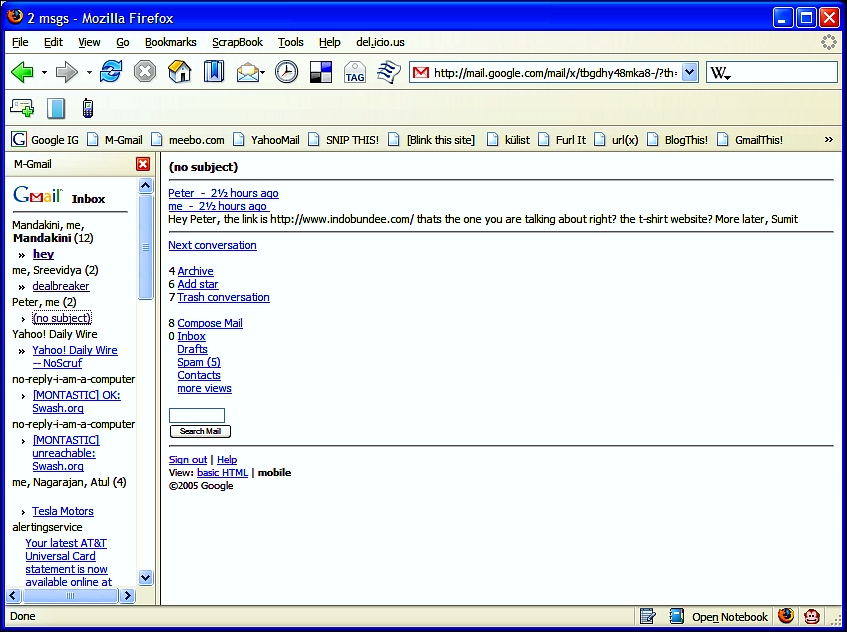 Steps:
1. Right click on the Bookmarks Toolbar
2. Create New Bookmark
3. Use http://m.gmail.com as the location
4. (Important): Check the "Load this bookmark in the sidebar" checkbox.
5. Now press the newly formed bookmark button and enjoy minimalist look and feel of the Gmail Mobile interface in the sidebar of the Firefox.
Do keep in mind, since its the version of Gmail that loads into WAP browsers, you may not be able to read the whole message in one screen, but there are simple links at the bottom to go to the "Next Page"
Let me know what you think.
Here are some more screenshots.
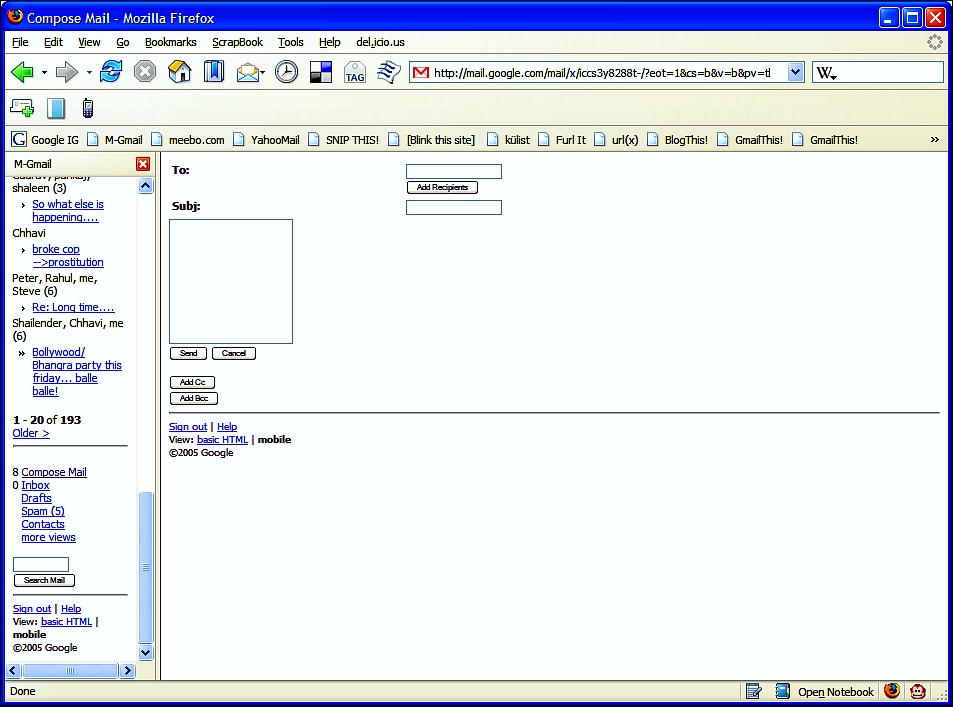

You'll know what I am doing once you try it for yourself.
Steps:1. Right click on the Bookmarks Toolbar
2. Create New Bookmark
3. Use http://m.gmail.com as the location
4. (Important): Check the "Load this bookmark in the sidebar" checkbox.
5. Now press the newly formed bookmark button and enjoy minimalist look and feel of the Gmail Mobile interface in the sidebar of the Firefox.
Do keep in mind, since its the version of Gmail that loads into WAP browsers, you may not be able to read the whole message in one screen, but there are simple links at the bottom to go to the "Next Page"
Let me know what you think.
Here are some more screenshots.
Subscribe to:
Posts (Atom)